
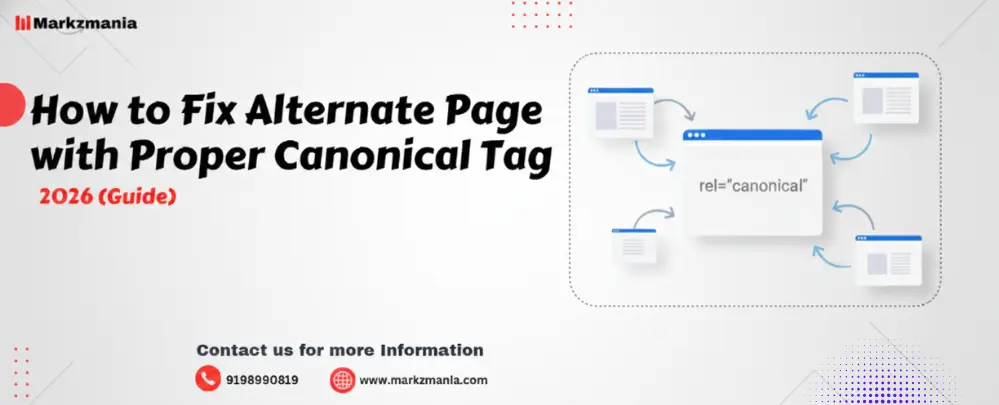
Are you seeing the “Alternate page with proper canonical tag” error in Google Search Console? Don’t panic. This is one of the most common SEO issues, and you can fix it without being a tech expert. In this guide, you will learn exactly what this issue means, why it happens, and how to fix it step by step on any platform.
What Is “Alternate Page with Proper Canonical Tag”?
When Google crawls your website, it sometimes finds multiple pages with similar or duplicate content. To avoid indexing every duplicate, Google looks for a canonical tag — a small piece of HTML code that tells Google which page is the “main” or “preferred” version.
The message “Alternate page with proper canonical tag” in Google Search Console means:
- Google found your page
- Your page correctly points to another URL as the canonical (preferred) version
- Google is not indexing this page because it treats it as a duplicate or alternate
This is actually not always a problem. If you intentionally set a canonical tag pointing to another URL, Google is simply respecting your choice. But if pages you want indexed are showing this status, you need to act.
What Is a Canonical Tag?
A canonical tag is an HTML element you place in the <head> section of a page. It looks like this:
<link rel="canonical" href="https://www.yoursite.com/preferred-page/" />This tag tells search engines: “Hey, this is the main version of this page. Please index this one.”
If Page A has a canonical pointing to Page B, Google treats Page A as an “alternate” and indexes Page B instead.
How to Add a Canonical Tag in HTML
Adding a canonical tag manually is simple. Open your HTML file and add this line inside the <head> tag:
<head>
  <link rel="canonical" href="https://www.yoursite.com/your-main-page/" />
</head>
Replace the URL with the exact address of the page you want Google to index. Make sure you use the full URL including https:// and any trailing slash you normally use.
How to Fix Alternate Page with Proper Canonical Tag in Google Search Console
Google Search Console (GSC) is where you first notice this issue. Here is how to diagnose and resolve it:
Step 1 — Go to Google Search Console. Open your GSC account and click on “Pages” under the Indexing section in the left menu.
Step 2 — Find the issue. Scroll down to see the list of “Why pages aren’t indexed.” Look for “Alternate page with proper canonical tag” and click on it.
Step 3 — Inspect the URLs. Click on the affected URLs to inspect them. GSC will show you which canonical URL the page is pointing to.
Step 4 — Ask yourself: Is this page supposed to be indexed? If yes, you need to update the canonical tag. If no, leave it as is — it is working correctly.
Step 5 — Fix and resubmit. After fixing the canonical tag, go back to GSC, inspect the URL, and click “Request Indexing” to ask Google to re-crawl it.
How to Fix Alternate Page with Proper Canonical Tag in WordPress
WordPress is the most popular CMS, and fixing canonical issues is easy with the right plugin.
Using Yoast SEO:
- Install and activate the Yoast SEO plugin.
- Open the page or post you want to fix.
- Scroll down to the Yoast SEO meta box and click on “Advanced”.
- Find the “Canonical URL” field.
- Enter the correct URL — the one you want Google to index.
- Save the post.
Using Rank Math:
- Open the page in WordPress editor.
- Click on the Rank Math icon in the top right.
- Go to Advanced tab.
- Find the Canonical URL field and enter the correct URL.
- Update the page.
Important tip for WordPress users: Make sure you do not have conflicting canonical tags. Some themes and plugins both add canonical tags, which causes duplicates and confuses Google. Use only one SEO plugin at a time.
How to Fix Alternate Page with Proper Canonical Tag in Blogger
If you use Google’s Blogger platform, canonical tags work a little differently.
For Blogger, follow these steps:
- Log in to your Blogger dashboard.
- Go to Theme > Edit HTML.
- Find the
<head>section. - Add this code manually:
<link expr:href='data:blog.url' rel='canonical'/>Blogger automatically uses the post’s own URL as the canonical. If you want to set a custom canonical for a specific post, you need to add it manually in the HTML editor for that post.
Alternatively, if you are using a custom domain on Blogger, make sure your search preferences in the Blogger settings do not have conflicting settings under “Custom robots header tags.”
How to Fix Alternate Page with Proper Canonical Tag in Shopify
Shopify automatically adds canonical tags to all product, collection, and blog pages. However, issues can still arise — especially with filtered URLs, paginated pages, or duplicate product listings.
To fix canonical issues in Shopify:
- Go to your Shopify Admin and click Online Store > Themes.
- Click Actions > Edit Code.
- Open the
theme.liquidfile (or the specific template causing the issue). - Look for any existing canonical tag — it usually looks like
{{ canonical_url }}. - Make sure this code exists in the
<head>section:
<link rel="canonical" href="{{ canonical_url }}" />Shopify automatically sets the canonical URL for each page. If you are seeing alternate page issues with product variants or filter pages, the built-in canonical handling should already point to the main product URL. You may need to avoid creating separate pages for URL parameters and use Shopify’s built-in URL structure instead.
How to Solve and Resolve Alternate Page with Proper Canonical Tag
Here is a practical checklist you can use to solve this issue on any website:
Check if the canonical is intentional. Open the affected page and view its source code (right-click > View Page Source). Search for rel="canonical". See where it points. If it correctly points to the main version of the page, the issue is resolved — Google is working as intended.
Check for self-referencing canonicals. Every indexable page should have a canonical tag pointing to itself. A page at https://yoursite.com/blog/post-1/ should have:
<link rel="canonical" href="https://yoursite.com/blog/post-1/" />Fix HTTP vs HTTPS conflicts. If your canonical says http:// but your site runs on https://, Google may get confused. Always use https:// in your canonical tags.
Fix WWW vs non-WWW conflicts. Choose one version — either www.yoursite.com or yoursite.com — and use it consistently in all canonical tags.
Fix trailing slash issues. yoursite.com/page/ and yoursite.com/page are technically different URLs. Pick one format and stick with it across all your canonical tags.
Avoid canonical chains. A canonical chain happens when Page A points to Page B, and Page B points to Page C. Google may not follow the chain. Always point directly to the final preferred URL.
How to Fix a Canonical Issue — Common Mistakes to Avoid
Many website owners make small mistakes that create big canonical problems. Watch out for these:
Do not use relative URLs in canonical tags. Always use the full absolute URL including the domain name. href="/page/" is wrong. href="https://yoursite.com/page/" is correct.
Do not set canonical tags on paginated pages pointing to page 1. If you have a blog with pages like /blog/?page=2, do not set the canonical to /blog/. Each paginated page should self-reference unless you are using a specific pagination strategy.
Do not ignore 301 redirects. If the canonical URL you are pointing to is itself a redirect, fix the redirect first so the canonical points to the final destination directly.
How to Resolve: Google Chose Different Canonical Than User
Sometimes you set a canonical tag, but Google ignores it and picks a different URL. This happens because Google treats canonical tags as hints, not directives.
If Google keeps choosing a different canonical, try these fixes:
Make the preferred page stronger. Google picks canonicals based on signals like internal links, backlinks, and content quality. Link more internally to the page you want indexed. Make sure it has the best, most complete content.
Use 301 redirects alongside canonicals. If you truly want only one URL to exist, redirect the duplicate to the main URL with a 301 redirect rather than relying only on a canonical tag.
Check your sitemap. Include only the preferred canonical URLs in your XML sitemap. If duplicate URLs appear in your sitemap, Google may get conflicting signals.
Ensure HTTPS consistency. Google strongly prefers HTTPS URLs. If your canonical points to an HTTP page, Google may override it and pick the HTTPS version.
What Is the Alternative Canonical Tag?
There is no official “alternative” canonical tag. However, some people use the term to describe hreflang tags, which handle alternate language or regional versions of a page.
For example, if you have an English page and a French version, you use hreflang like this:
<link rel="alternate" hreflang="en" href="https://yoursite.com/page/" />
<link rel="alternate" hreflang="fr" href="https://yoursite.com/fr/page/" />
Each of these pages should also have its own self-referencing canonical tag. The hreflang and canonical work together — hreflang signals the alternate language versions while canonical signals the preferred indexable URL for each version.
Quick Summary
The “Alternate page with proper canonical tag” status in Google Search Console is not always an error. It often means everything is working correctly. But if you see pages you want indexed showing this status, you need to check and correct your canonical tags.
Fix the canonical URL to point to the right page, keep your URLs consistent with HTTPS and trailing slashes, avoid canonical chains, and resubmit the page in Google Search Console. Whether you use WordPress, Shopify, Blogger, or raw HTML, the principles are the same — tell Google clearly which page is the one you want ranked, and it will listen.